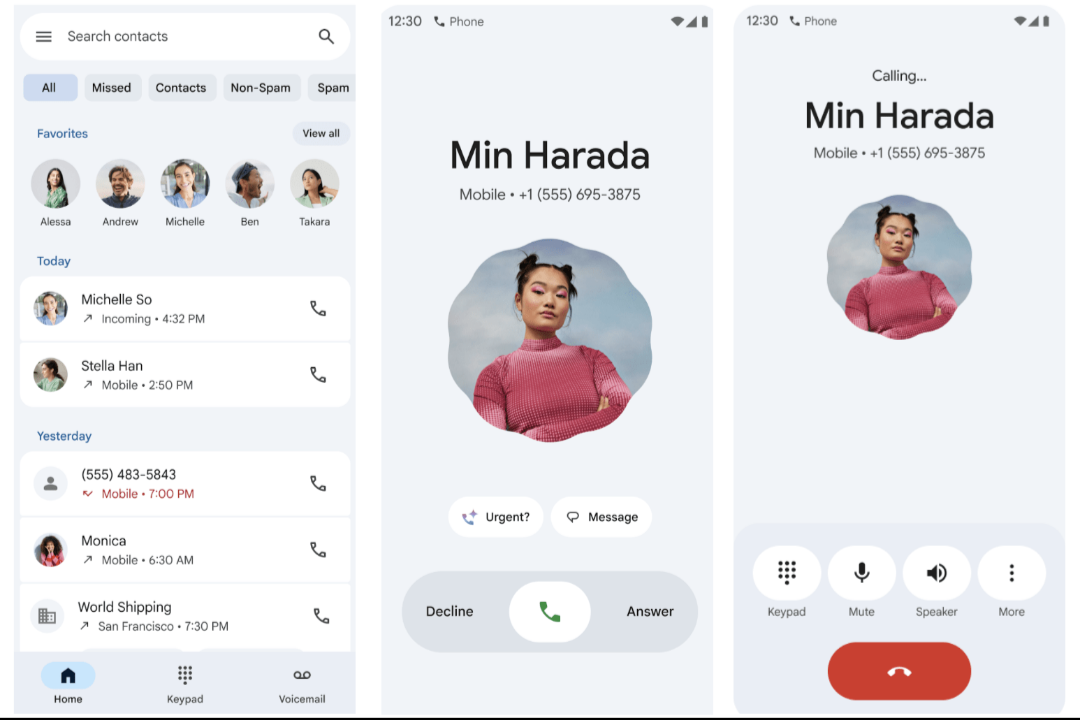
Google has recently rolled out a big update to its Phone Dialer application, which is the default calling app on most Android phones, especially Pixel devices. This update brings a new look, new gestures, and some added features. While many users like the modern design, others feel the changes are confusing because they are very different from the old layout.
In this article, we will explain:
What the Google Phone app is
What has changed in the new update
The pros and cons of these changes
How to update the app on your phone
How to go back to the old design if you don’t like the new one
By the end, you will clearly know how to use the new version of the app or return to the older one if you prefer.
—
What Is the Google Phone App?
The Google Phone app, often called the Google Dialer, is the main application that you use to make calls, receive calls, check your recent call history, and manage voicemail. It comes pre-installed on Pixel phones and is also available on many other Android smartphones.
The app is very popular because it includes helpful features such as:
Spam call protection (alerts you when a number is likely to be spam)
Caller ID (shows the name of the caller if available)
Call screening (lets Google Assistant answer calls for you on Pixel devices)
Easy access to voicemail
Clear call history and contact management
Since many people use this app daily, even a small design change affects millions of users. That’s why this latest update has become such a big topic of discussion.
—
What’s New in the Latest Update?
Google has redesigned the Phone app under its new Material You / Material 3 design language. This design style focuses on bigger buttons, brighter colors, and smoother animations. Let’s look at the main changes.
1. New Tab Layout
Earlier, the Phone app had four tabs at the bottom: Favorites, Recents, Contacts, and Voicemail. Now, Google has simplified it to three tabs:
Home – This is a combined tab where you can see your favorites at the top and your recent calls below.
Keypad – A separate tab for the dialer keypad with larger buttons.
Voicemail – A dedicated tab for voicemail access.
The Contacts tab is gone, and you now have to use the search bar or the sidebar menu to find contacts. This is one of the biggest changes, and many users are not happy about it because it adds one extra step to reach contacts.
2. Updated Keypad
The keypad now has rounded, larger buttons, which makes it easier to dial numbers. The design looks cleaner, but some people feel the buttons are “too big” and take up extra space.
3. New Incoming Call Screen
Earlier, to answer a call you could either tap or swipe vertically. With the new update, you now need to swipe horizontally:
Swipe right to answer
Swipe left to decline
This new gesture may help prevent accidental touches, but it also confuses users who were used to the old method.
4. In-Call Controls
Once you are on a call, you will see pill-shaped buttons for functions like mute, speaker, hold, or add a call. The end call button is now larger and colored bright red so it is easier to find.
5. Better Call History Filters (on Pixel 9 and above)
If you have a newer Pixel phone, you can now filter your call history into categories like All, Missed, Contacts, Non-Spam, and Spam. This makes it easier to find specific calls.
6. Highlighted Pixel-Exclusive Features
Features like Direct My Call, Call Assist, Call Notes, and Audio Emoji are now easier to access and more visible in the new interface.
—
Why Are Users Divided on the Update?
Like many big changes, this update has received mixed reactions.
Positive reactions:
The app looks cleaner, more modern, and consistent with Google’s Material You design.
Larger buttons and swipe gestures reduce accidental touches.
Some users say the new look is easier on the eyes and more organized.
Negative reactions:
Losing the Contacts tab makes things harder for people who use it often.
The horizontal swipe to answer feels unnecessary to many.
Buttons are “too big” and take up space, making the app look childish.
Long-time users find it difficult to adjust because they were comfortable with the old design.
In short, if you like modern design and bold visuals, you may enjoy this update. But if you value simplicity and quick access to contacts, you may find it frustrating.
—
How to Update the Google Phone App
If you haven’t received the new update yet, here’s how you can check and update manually:
1. Open Google Play Store on your Android phone.
2. In the search bar, type “Phone by Google.”
3. If an update is available, you will see an Update button. Tap it.
4. Once updated, the app will automatically switch to the new design.
👉 On Pixel devices, updates may also come through system updates as part of monthly feature drops. So, keeping your phone updated will ensure you have the latest version.
—
How to Go Back to the Old Version
Not everyone likes the new design. Luckily, there are ways to go back:
1. Uninstall Updates
Go to Play Store → Phone by Google → Uninstall updates.
This will restore the factory version of the app.
2. Turn Off Auto Updates
In Play Store, go to your Profile → Settings → Auto-update apps → Don’t auto-update apps.
This will stop the new design from coming back.
3. Clear Cache and Data
Go to Settings → Apps → Phone → Storage → Clear cache & data.
This ensures the old UI loads properly.
4. Change Call Answer Gestures
Some phones let you switch back from swipe-to-answer to tap-to-answer in Settings → Incoming Call Gestures.
5. Try Another Dialer App
If you still don’t like Google’s design, you can try third-party dialers like ODialer (for OnePlus, Oppo, Realme) or other alternatives on the Play Store.
—
Tips to Make the Most of the New App
Learn the new gestures: Practice the horizontal swipe a few times to get used to it.
Use search for contacts: Instead of browsing, just type the name in the search bar. It is faster once you build the habit.
Explore Pixel features: If you own a Pixel phone, explore options like Call Assist, Spam Filters, and Call Notes for better productivity.
Give feedback to Google: In the app’s settings, you can send feedback to Google. If enough users complain about missing features, Google may bring them back.
—
Final Thoughts
The new Google Phone Dialer update is one of the biggest redesigns in years. Google has tried to make the app more modern, colorful, and gesture-based. Some people appreciate the fresh design, while others miss the simplicity of the old version.
If you like trying new things, update your app and enjoy the fresh look.
If you prefer the old, simple design, you can still uninstall updates and turn off auto-updates.
At the end of the day, the choice is yours. Thankfully, Android gives you enough flexibility to stick with what works best for you.
